
Beluxe - Documentation
Introduction
Beluxe - Beauty & Cosmetics eCommerce HTML5 Template
Thank you very much for choosing our theme. We truly appreciate and really happy that you'll enjoy our theme!
Beluxe is a Fully Responsive HTML5 Theme like modern design website, HTML5 template, responsive design, SEO which has build by bootstrap. It features a clean and responsive design, we blend creativity with functionality to design spaces that inspire.
It has a fully responsive width adjusts automatically to any screen size or resolution. Theme have with lot of option like Header, Footer, Slider, Banner, Product Grid-list, Timer option, Blog, Article, Root directory option (like body, heading, secton heading, paragraph etc...) Typography option, Preloader, Section padding option, Button option, Animation etc...
Theme features
- HTML5
- CSS3
- Bootstrap 5
- Jquery
- Typography
- Color
- Icon
- Easy to customize
- Fully responsive
- W3C validate
- Dropdown menu
- Clean code
- Clean design
- Grid
- List
- Blog
- Slider
- Social share
- Best rated
Files included
- Documentation
- Template

Documentation
Documentation folder include whole theme option from strat to end.
Open index file to show the documentation page, Open in browser to show perfect view of the documentation.

Template
Template folder included file.
Template folder file contain to show file with same as you shown in template with image ratio.
Image ratio means you will may know about the exact image dimension of the HTML template, So you will add that image dimension in your demo file respectively and show your future theme how it look.
Installation
Package download from envatomarket
Go to the envatomarket website and log in to your account. This is the account you used to make the purchase.
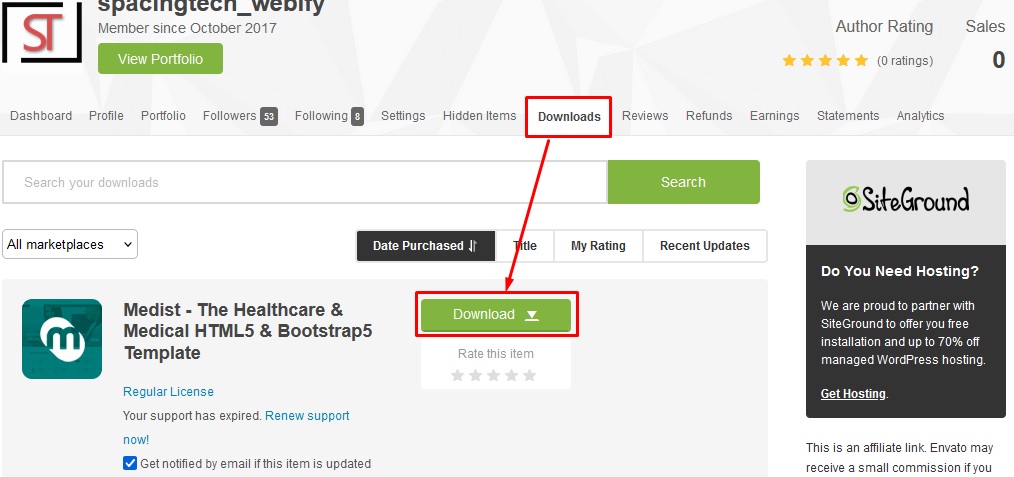
After logging in, look for a Downloads tab to download your purchase theme from your envatomarket account. The specific wording and location may vary depending on the website's design.
In the Downloads tab, you should see the theme you purchased listed there. Click on Download button.
Download the theme
You will typically be provided with options to download the theme files. Download the files to your computer. The theme files might be in a compressed format like ZIP.
If the theme files are in a compressed format, unzip or extract them to a location on your computer.
Install the theme
Follow the documentation or instructions provided with the theme to develop an ecommerce big platform like wordpress, shopify, opencart, prestashop, bigcommerce.
After Devlope HTML theme in variours platform then installation, activate the theme as per the instructions. This might involve going to your website's admin panel or theme settings and selecting the newly installed theme.
Envaomarket website layout and theme delivery process may change over time, so it's important to follow the specific instructions provided on their website or in the documentation that comes with the theme you purchased.
Template structure
Theme folder template package structure
There are many types of structure to build template.
We follow below type of structure for template.
- Assets folder
- HTML5 files

We follow below type of structure for assets folder.
- CSS files
- Font files
- Image files
- JavaScript files

HTML5 structure
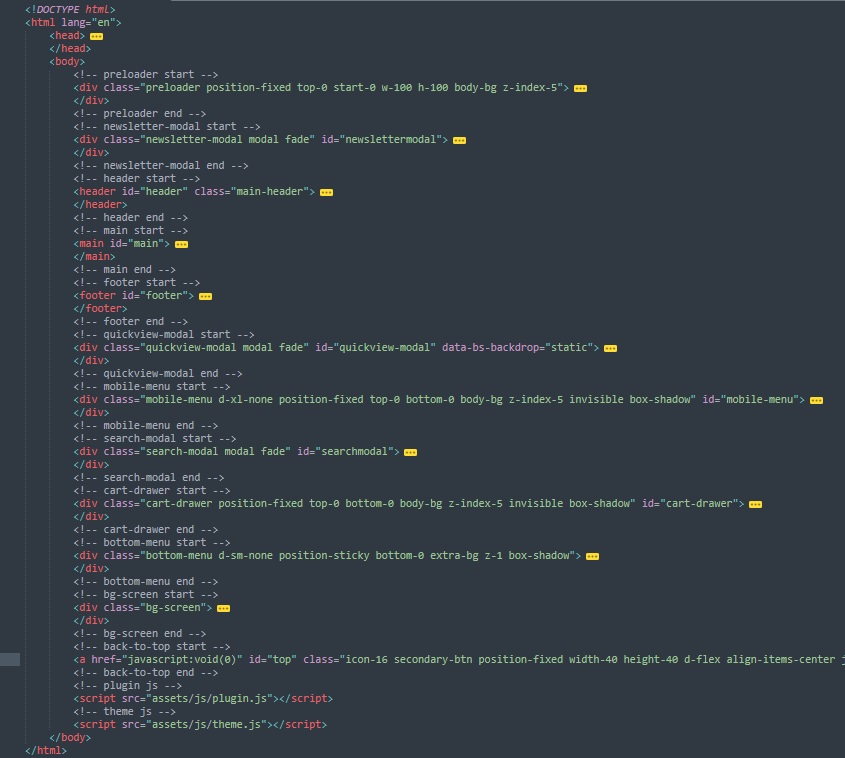
The main contents are inside the 'body' tag divided into different section & div (i.e. preloader, top-bar, header, main,... footer etc.).
The general template structure is the same throughout the template. Here is the general structure.
CSS files structure
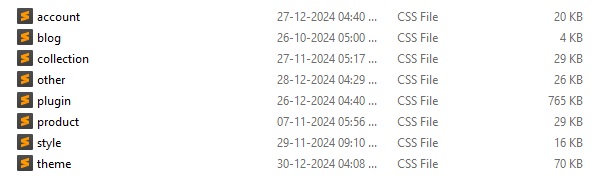
We are using various type of CSS files (i.e. account.css, blog.css, collection.css, other.css, product.css, style.css, theme.css,... etc.) and several vendor css files (i.e. plugin.css).
CSS file structure is as follows:
Theme css
Theme css file include all tag css (i.e. body, heading, anchor link, paragraph, header,... footer etc.).
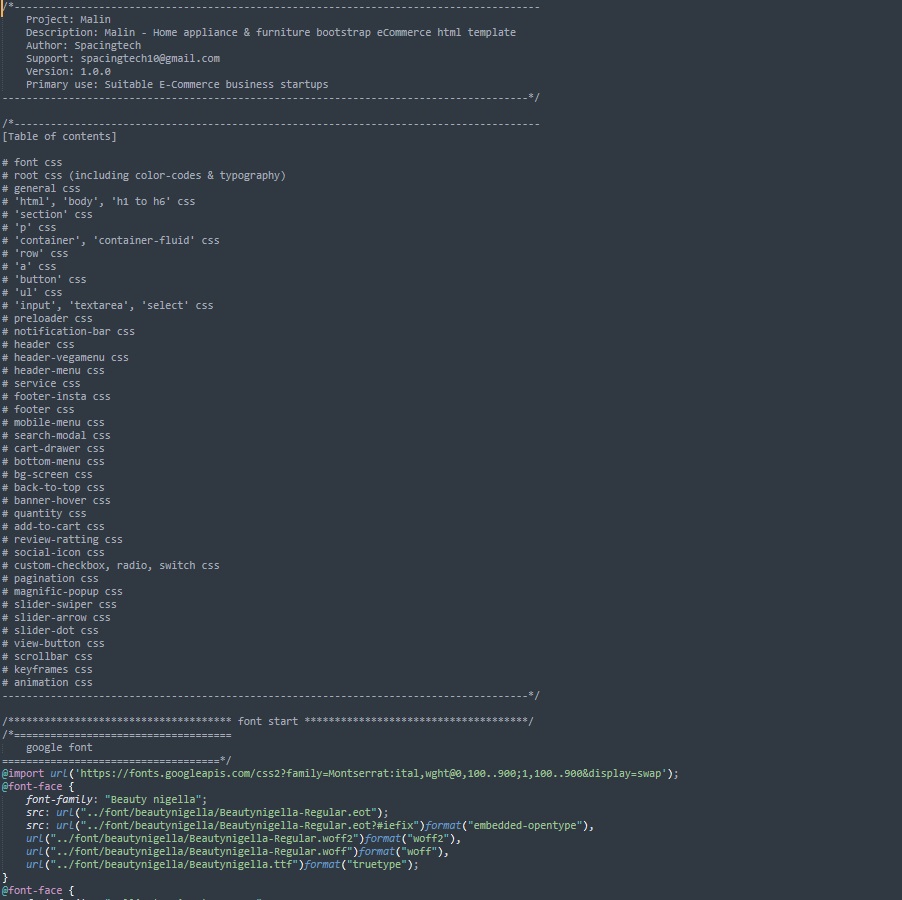
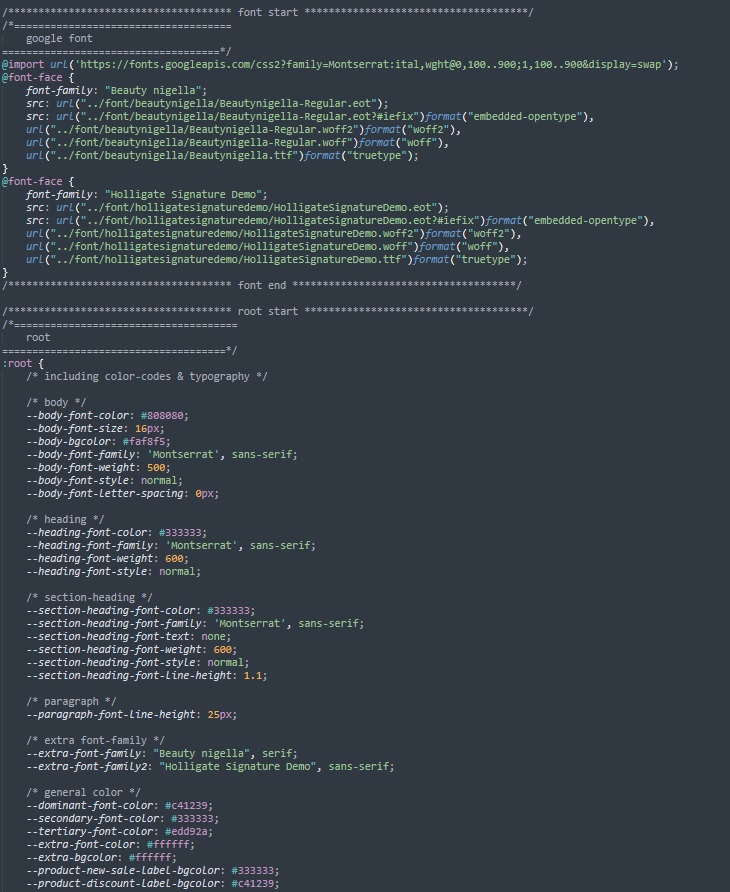
Style css
Style css file include index layout css.

Plugin css
Plugin css file include all several vendor css files (i.e. bootstrap, animate, remix-icon, owl-carousel, swiper,... custom etc.).
Custom css is our customize files (i.e. margin, padding, other,... etc.).

Font files structure
To use Google Fonts Library in an HTML5 template, you can follow these steps.
Google Fonts provides two ways to include fonts in your HTML template:
'Link' tag css (Recommended)
Google Fonts will provide you with a "link" tag that you should include in the "head" section of your HTML document. It looks like this:

@import CSS Rule
If you prefer to include fonts using CSS, Google Fonts also provides a CSS @import rule. It looks like this:

Apply the font to your HTML elements
Once you have linked to the google font in your HTML document, you can apply the font to specific HTML elements using CSS. For example, to apply the font to all paragraphs, you can do this in your CSS file

Font icon rule
If you want to add any other font icon need to attach that vendor file and download that font and store that font in font files with rendom folder (i.e. eot, ttf, woff, woff2,... etc.). It looks like this:


Image files structure
Image folder include whole theme image location.
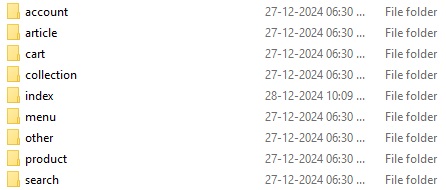
Logo sample
Suppose you want to change the following image file. It looks like this:

JavaScript files structure
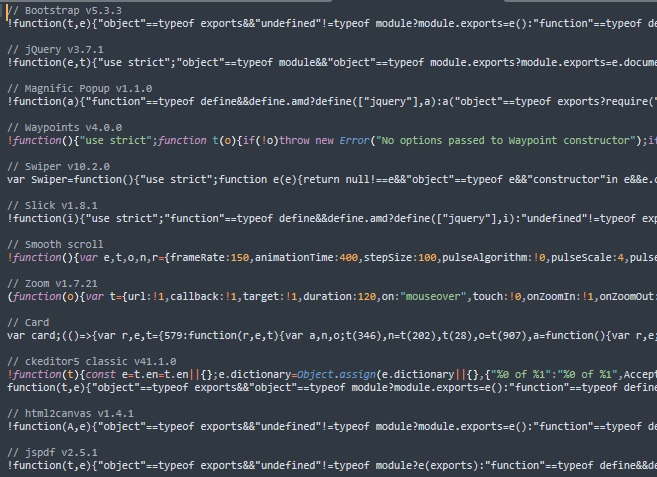
We are using one custome js files (i.e. theme.js,... etc.) and several vendor css files (i.e. plugin.min.js).
JavaScript file structure is as follows:

Theme js
Theme js file include whole template js (i.e. loadpage, imgresize, switchclick, headersticky, navactive, contactform, backtotop, cursorpoint, animatetemplate,... custom etc.).

Plugin js
Plugin js file include all several vendor css files (i.e. popper, bootstrap, jquery, jquery-nav, waypoints, owl-carousel, swiper,... custom etc.).
Change contents
Change the content as per your requirements
Moslty these type of changes contents follow below like this.
- Logo & Favicon
- Color
- Header
- Slider
- Footer
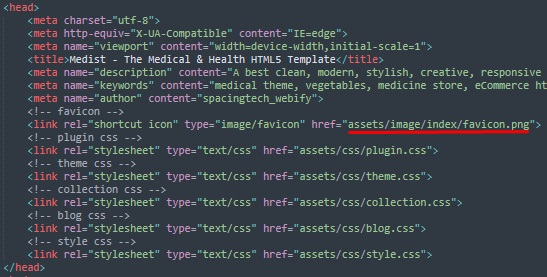
Changing images (i.e. logo, favicon,... etc.)
To change any images of the website.
Carefully collect the source name of the image.
Open the file called image.
Find the particular image file.
Replace the file with your image.
Make sure that the file name does not change.The file name should be the same.
Suppose you want to change the following image file.

Changing default template colors
We have used root directory in theme.css for this project to write css.
If you are familiar with theme.css you should customize only the theme.css files.
Please make sure you compile the theme.css file after you have made changes in any of the theme.css files.
Open the theme.css file from assets > css > defaults folder with a text-editor.
Change the right-side values of the variables to change any default colors of your site.
Save your file.
Have a look at the following image for a visual description:

Changing sticky header
If you don't want sticky header then remove js from theme.js files.
Follow instructions in image below:

Changing slider
We are using two slider now (i.e. swiper, slick... etc.).
These both several vendor css & js files store in plugin.min.css & plugin.min.js respectively.
If you want to change any features then edit js from theme.js files.
Swiper slider
Swiper slider file structure is as follows:

Slick slider
Slickl slider file structure is as follows:

Sources & credits
Our source has given in below structure
We've used the following source as listed.
- Google fonts
- Bootstrap
- jQuery
- Magnific Popup
- Waypoints js
- Swiper slider
- Slick slider
- Smooth scroll
- Zoom
- Card
- Ckeditor5 classic
- Html2canvas
- Jspdf
- Animate
- Remix icon
- Other custom source css (i.e. color, margin, padding, other-property,... etc.)
Support
Our support always available for our client
Thank you for purchasing our template.
If you have any questions that are beyond the scope of this help file, please feel free to open a new ticket at spacingtech10@gmail.com respectively.